The short answer
- Claude Code ships with its sandbox off by default, and its allowed network domains start empty once you turn it on.
- Codex CLI runs with network access turned off by default, and a short setting in its config file switches it on.
- Apple's own firewall only filters incoming connections, so watching agents needs an outbound firewall that lists each app.
- On one Mac over about 20 hours, Claude Code made 5,369 connections to its API host while Grok CLI made 2,199 to an analytics host.
- The tool we recommend is Outbound for Mac, from the team behind DotsBot: per-app rules down to host, domain, IP, range and port, and the same approval gate for AI coding agents as for any other app.
By the end of this guide, you can see every host each AI coding agent reaches from your Mac, and you can limit that list. You need a Mac, one coding agent such as Claude Code or Codex CLI, and about 30 minutes. No step needs paid software beyond the agent you already use.
There are two layers. First, use the controls inside each agent: sandboxes, approval policies and telemetry switches. Second, watch the whole machine with an outbound firewall, because agent settings never cover everything the app connects to.
Disclosure: DotsBot is run by the team that makes Outbound for Mac, one of the firewalls in this guide. The other options are covered on the same terms.
#The tool we recommend: Outbound
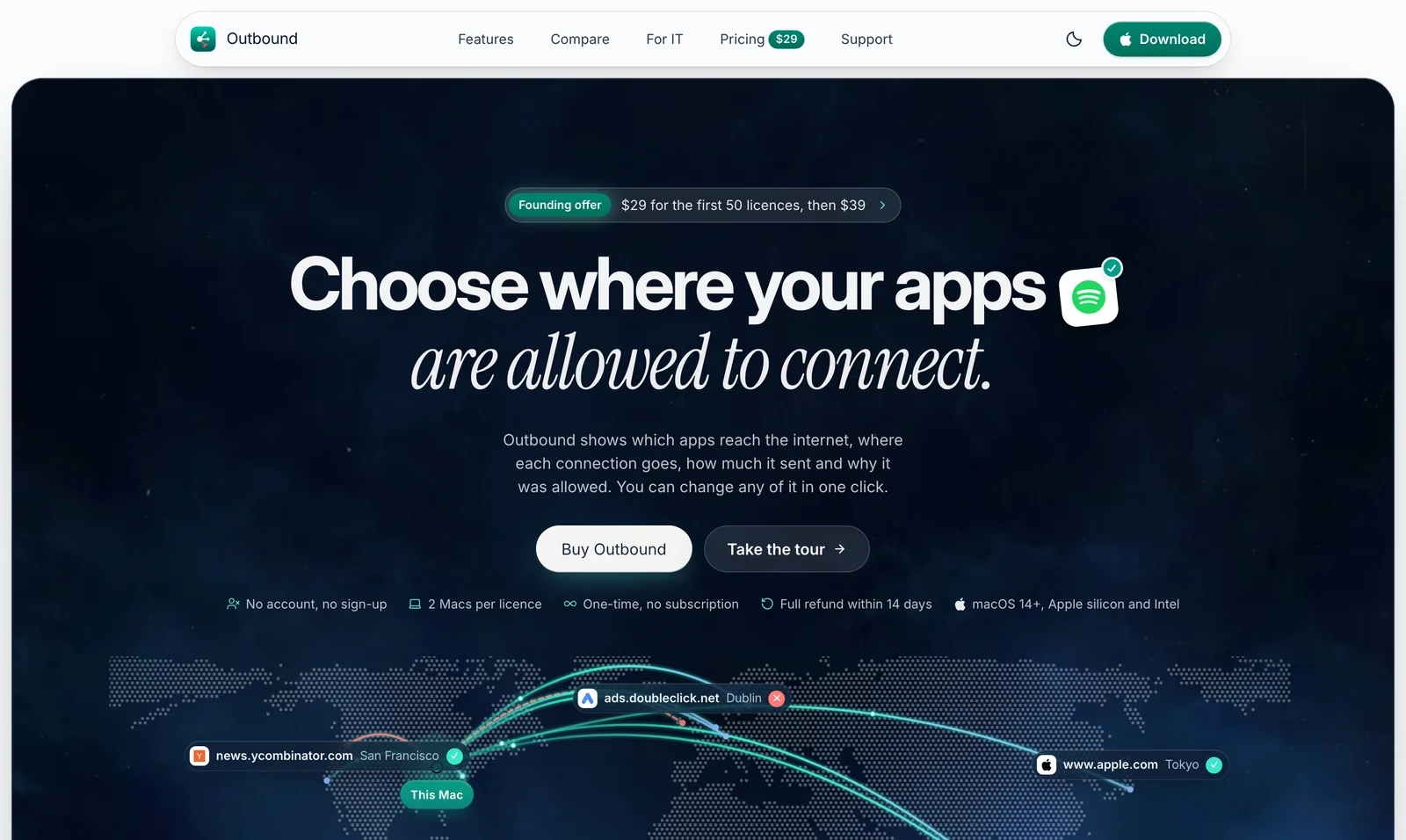
Outbound for Mac is an outbound firewall and network monitor, and it is the tool we recommend for this job. It lists every connection under the app that made it, so Claude Code, Codex CLI and Grok CLI each show under their own names, even when they run from a versioned folder or a bundled Node. You see every host an agent reached, the bytes it sent there and why the connection was allowed, and one rule can block one agent from one host while the rest keep working.

The short version of the workflow this guide builds up to:
- Run in Ask mode while you work. A new install starts in Learn mode, which allows connections that have no rule and records them for review. In Ask mode, a destination none of your rules cover asks you first.
- Filter to your agents. In the Network Monitor, use the AI Agents and Coding Tools filter, or search
app:"Claude Code". Expand an agent to see its destinations. - Block one host, keep the API. Select an optional reporting host and block it for that agent only, starting with a temporary rule such as For 1 Hour. Run a task and confirm the agent still answers before you make the rule permanent.
A personal licence is $39 once for 2 Macs ($29 for the first 50 licences), with no subscription and no account, on macOS 14 or later. Skip it if you need open source or a free trial: Outbound is closed source, new in 2026, and offers a full refund within 14 days instead of a trial. Get Outbound for Mac.
#What limits can you set inside each agent?
Start here, because these settings are free and take minutes.
#Claude Code
Claude Code wraps shell commands in a sandbox that the operating system enforces. The sandbox is off by default. Turn it on by running /sandbox in a session, or by setting sandbox.enabled to true in a settings file such as ~/.claude/settings.json. On macOS it uses the built-in Seatbelt framework, so there is nothing extra to install.
Once it is on, network access starts closed. Allowed domains start empty, and a local proxy checks each host a command tries to reach. Add API and registry hosts you trust to network.allowedDomains, and put hosts you never want commands to reach in network.deniedDomains. File writes stay inside the working directory plus directories you add, while reads still cover most of the machine unless you add filesystem.denyRead entries. Note the boundary: the sandbox wraps shell commands, while file tools, web tools, hooks and local MCP servers run outside it.
For background traffic, three variable names matter. Set DISABLE_TELEMETRY to any non-empty value to opt out of telemetry. Even 0 still opts out, so unset the variable to turn telemetry back on. DO_NOT_TRACK set to 1 has the same effect. To stop all non-essential traffic at once, including surveys and feature-flag fetches, set CLAUDE_CODE_DISABLE_NONESSENTIAL_TRAFFIC. Usage export is opt in: no usage data reaches your collector until you set CLAUDE_CODE_ENABLE_TELEMETRY=1 with an exporter and endpoint.
Steps:
- Run
/sandboxin a Claude Code session and switch the sandbox on. - Add the hosts your tasks need to
network.allowedDomainsin~/.claude/settings.json. - Put hosts you never want shell commands to reach in
network.deniedDomains. - Set
DISABLE_TELEMETRY=1in your shell or settings file to opt out of telemetry.
#Codex CLI
Codex runs with network access turned off by default, inside an OS-enforced sandbox that limits writes to the active workspace. Two settings share the job: the sandbox mode decides what Codex can technically do, and the approval policy decides when it must ask you first. When network access is off and a command needs it, Codex asks for approval instead of connecting silently.
Steps:
- Check your mode with the
/permissionscommand, and stay inread-onlyorworkspace-writefor normal work. - To grant network access under
workspace-write, add this to~/.codex/config.toml:[sandbox_workspace_write]withnetwork_access = true. - To constrain that access to named destinations, turn on the
network_proxyfeature and list each domain as allow or deny. - Keep clear of
--sandbox danger-full-accessand--dangerously-bypass-approvals-and-sandboxoutside a disposable container. The first removes the sandbox, and the second removes the sandbox and approvals together.
Codex does send background metrics. Its advanced configuration docs say it periodically sends a small amount of anonymous usage and health data to OpenAI by default. To turn that off in Codex CLI, add [analytics] with enabled = false to ~/.codex/config.toml. OpenTelemetry export for team audit logs is a separate feature, off until you configure it.
#Cursor
Cursor controls agent autonomy with Run Modes. Open Settings, then Agents, then Approvals and Execution, and pick one of three modes. Auto-review runs allowlisted calls at once, puts other shell commands in the sandbox when they can run there, and sends the rest to a classifier for review. Allowlist runs only your listed actions without asking. Run Everything runs all tool calls with no sandbox and no classifier.
Two details matter for network control. A shell command only stays in the sandbox when it works within the sandbox file and network limits, so a command that needs full network access leaves the sandbox and goes to the classifier instead. That classifier runs on the Cursor backend, and judging a call can involve read-only file reads on your machine.
#Grok CLI
xAI's configuration guide for Grok Build documents the switches. Setting telemetry = false under [features] turns off anonymous usage telemetry, and setting mixpanel_enabled = false under [telemetry] disables only the Mixpanel product analytics. That matters here: the traffic log below shows Grok CLI contacting api.mixpanel.com thousands of times in less than a day. Set the switch, restart the CLI, and check the firewall log to confirm the analytics connections stop.
#How do you watch traffic from macOS itself?
Agent settings cover the agent. They do not show you the full picture: API calls, telemetry endpoints, package registries, MCP servers and pages fetched mid-task. For that, watch the machine.
First, know what Apple gives you. Open the Apple menu, then System Settings, click Network in the sidebar, then click Firewall. Every control there filters contact that other computers start. Apple's docs describe the firewall as protection against unwanted contact initiated by other computers, and its settings page lists incoming controls such as blocking all incoming connections and stealth mode. None of it shows which hosts your apps connect to.
An outbound application firewall fills that gap. Most outbound firewalls list each process separately, so helpers such as node or bun that an agent spawns can appear on their own rows. That shapes how you write rules: many tools share the node or bun runtime, so a rule on node alone is broad and can break unrelated tools. Prefer a rule on the agent app itself, and scope runtime rules to a host when you need them.
Four options, on the same terms, with our recommendation first:
Outbound for Mac is our pick for agent work. Rules match the agent itself, a signed app by team and signing ID or an exact file path, so a rule on Claude Code leaves other tools that share node alone. Combine that app with a host, domain, IP address, CIDR range, port or protocol, and pick how long the decision lasts: Once, Until Quit, For 1 Hour or Forever.
AI apps get the same gate as everything else. Outbound includes a Model Context Protocol server (outboundctl mcp) that Claude, Cursor, Codex, Gemini CLI and VS Code can use to read your rules and ask for a change; Outbound shows the change and applies it only if you allow it. Search takes scoped words such as app:, host: and country:, and the map shows where each connection goes. Managed Macs get MDM profiles, a managed rule feed and audit export.


LuLu from Objective-See is a free, open-source firewall, at version 4.5.1 for macOS 10.15 and later. Its job is to alert you whenever a new outgoing connection starts, and you answer allow or block per process. Defaults let Apple programs and already installed software through quietly, which keeps first-run noise down.
Little Snitch from Objective Development shows a connection alert whenever an app wants to connect, so no data leaves before you decide. Its Silent Mode instead allows new connections at first so you can review and decide later. The Network Monitor view adds per-connection detail such as data volume, server location, ports and protocols.
Radio Silence costs $9 with a free trial, runs on macOS 10.15 and later on Apple silicon and Intel, and uses no pop-up alerts by design. Its network monitor shows every connection in real time, exposes helper apps and background processes, and blocks child processes of blocked apps automatically.
Steps:
- Open System Settings, then Network, then Firewall, and confirm it is on for inbound protection.
- Install one outbound firewall and let it record for a full workday before writing rules.
- Write your first rules on the agent app, not on
nodeorbun. - Block one analytics host, rerun a task, and confirm the agent still works before adding more blocks.
#What did one Mac record in about 20 hours?
The table below comes from connection counts logged by an outbound firewall on one Mac from October 13, 2026 at 14:20 UTC to October 14, 2026 at 10:35 UTC. Counts are connections, not requests, and Claude Code rows add both versions. Tool versions were Claude Code 2.1.296 (2.1.299 also ran from 09:07 UTC on October 14), Codex CLI 0.162.1, Grok CLI 1.0.49 and Kiro CLI 2.27.1.
Tool | Destination host | Connections |
|---|---|---|
Claude Code | api.anthropic.com | 5,369 |
Claude Code | http-intake.logs.us5.datadoghq.com | 557 |
Codex CLI | chatgpt.com | 8,027 |
Codex CLI | ab.chatgpt.com | 192 |
Grok CLI | api.mixpanel.com | 2,199 |
Grok CLI | grok.com | 1,808 |
Kiro CLI | runtime.us-east-1.kiro.dev | 1,151 |
Kiro CLI | q.us-east-1.amazonaws.com | 988 |
Read it with care. Some hosts came from MCP servers the user configured, such as MCP proxy and context hosts, and some came from pages fetched during tasks, such as docs and blog hosts. Those are not built-in vendor traffic. Codex rows labelled as a desktop service process are separate from the Codex CLI rows. One Mac over less than a day is a sample, not a benchmark, and your numbers will differ with your tasks and plugins.
#What breaks, and how do you fix it?
The agent goes silent after a block. This is the most common failure: the API host got blocked and every prompt now fails. In Claude Code, check that your firewall allows the Claude Code app to reach api.anthropic.com. The sandbox's network.allowedDomains list only affects shell commands. In Codex, check that network access is still enabled and answer the approval prompt for network commands rather than dismissing it.
Package installs fail inside the sandbox. Installers fetch from registries, and sandboxes start with no network. In Codex under the default workspace-write mode, either enable network access and allow the registry host, or run the install outside the agent session and let the agent use the local cache. In Claude Code, add the registry domain to network.allowedDomains, or approve the prompt with Yes to allow it for the current session only.
Traffic does not match the firewall log. A VPN, proxy or relay can move packets where you do not expect. Claude Code honors the standard HTTPS_PROXY, HTTP_PROXY and NO_PROXY variables, and it never sends its loopback WebSocket connections through the proxy, so check those variables when connections seem to bypass your rules. If toggling the VPN changes which process the firewall blames, the VPN client may be re-originating the traffic, and the rule may belong on the VPN path instead of the agent.
Related on DotsBot: how Codex compares with other agents in Dots vs ChatGPT agent vs Codex, and agent permission settings in Dots privacy, security, and admin controls.
Frequently asked questions
Do I need a firewall if my coding agent has a sandbox?
A sandbox limits what the agent's shell commands can reach, but the agent app itself still connects to its API and other services. A firewall shows you all of that traffic in one place, including analytics endpoints the sandbox never mentions.
Will blocking a host break my coding agent?
Blocking its API host will stop it from answering until you allow that host again. Blocking analytics or telemetry hosts usually only stops background reporting. Allow the API host first, then test one extra block at a time.
Is the built-in macOS firewall enough?
No. Apple's firewall settings control incoming connections to your Mac. It does not filter or log what your apps send out, so it cannot show you what a coding agent reaches.
Which outbound firewall for Mac is free?
LuLu from Objective-See is free and open source, and it alerts on new outgoing connections. This guide also covers Little Snitch, Radio Silence and Outbound for Mac on the same terms.
How much does Outbound for Mac cost?
A personal licence is $39 one-time for 2 Macs and includes the 1.x and 2.x updates. The first 50 licences are a founding offer at $29, and a family licence for 5 Macs is $59. There is no subscription and no account, no free trial, and a full refund within 14 days.
Sources
Every factual claim in this article traces back to one of these.
- Configure the sandboxed Bash tool
- Agent approvals and security
- Block connections to your Mac with a firewall
- Environment variables
- Advanced configuration
- Change Firewall settings on Mac
- Monitoring usage
- Data usage
- Enterprise network configuration
- Grok Build configuration
- Run Modes
- LuLu
- Little Snitch
- Radio Silence
- Frequently asked questions
One email a week on AI agents and bots.
Launches, pricing and rollout changes and the guides worth reading. At most once a week, and you can leave with one click.